



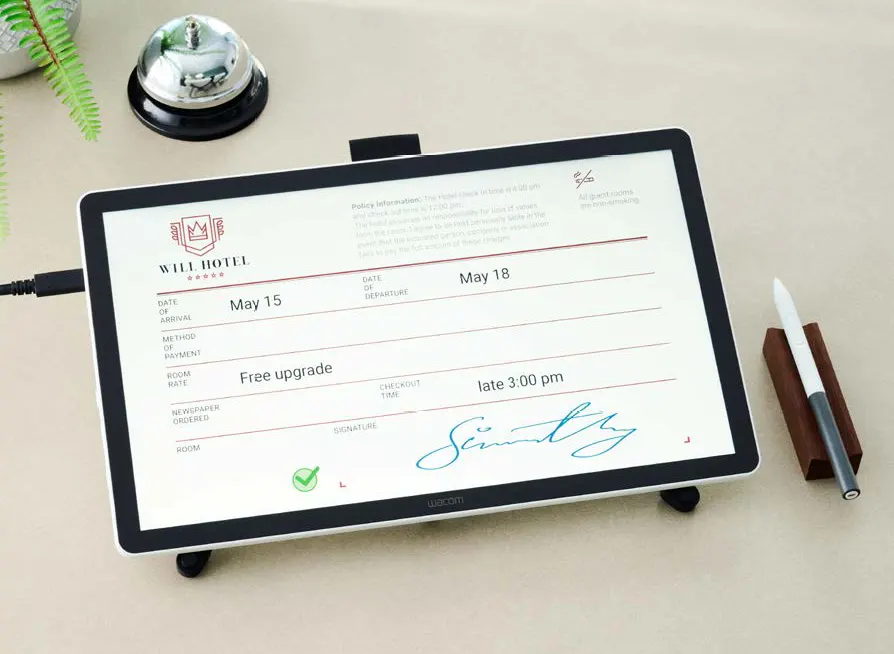
For service counters, reception desks and document workflows: the Wacom DTH142E lets a customer see a form, move through it by touch and sign with a battery-free pen on the same 14-inch screen. This guide explains the hardware, the two connection routes and the practical differences from Wacom’s smaller STU pads and other business pen displays.
Key takeaways
- The DTH142E combines a 14.0-inch Full HD IPS panel, anti-glare and anti-fingerprint glass, ten-finger touch and a battery-free EMR pen.
- Its screen is large enough to show more of a document during signing. The STU-430 and STU-540 are compact signature pads for a narrower capture task.
- Connect through USB-C when the host supports DisplayPort Alt Mode, or use mini-HDMI for video and USB-A for pen and touch data. Power must meet the device’s requirements.
- The display does not store documents. The connected computer and application handle forms, signature records and retention.
- Test your real forms, host ports, driver and signing software at one desk before a wider rollout.
What the DTH142E does at a business counter
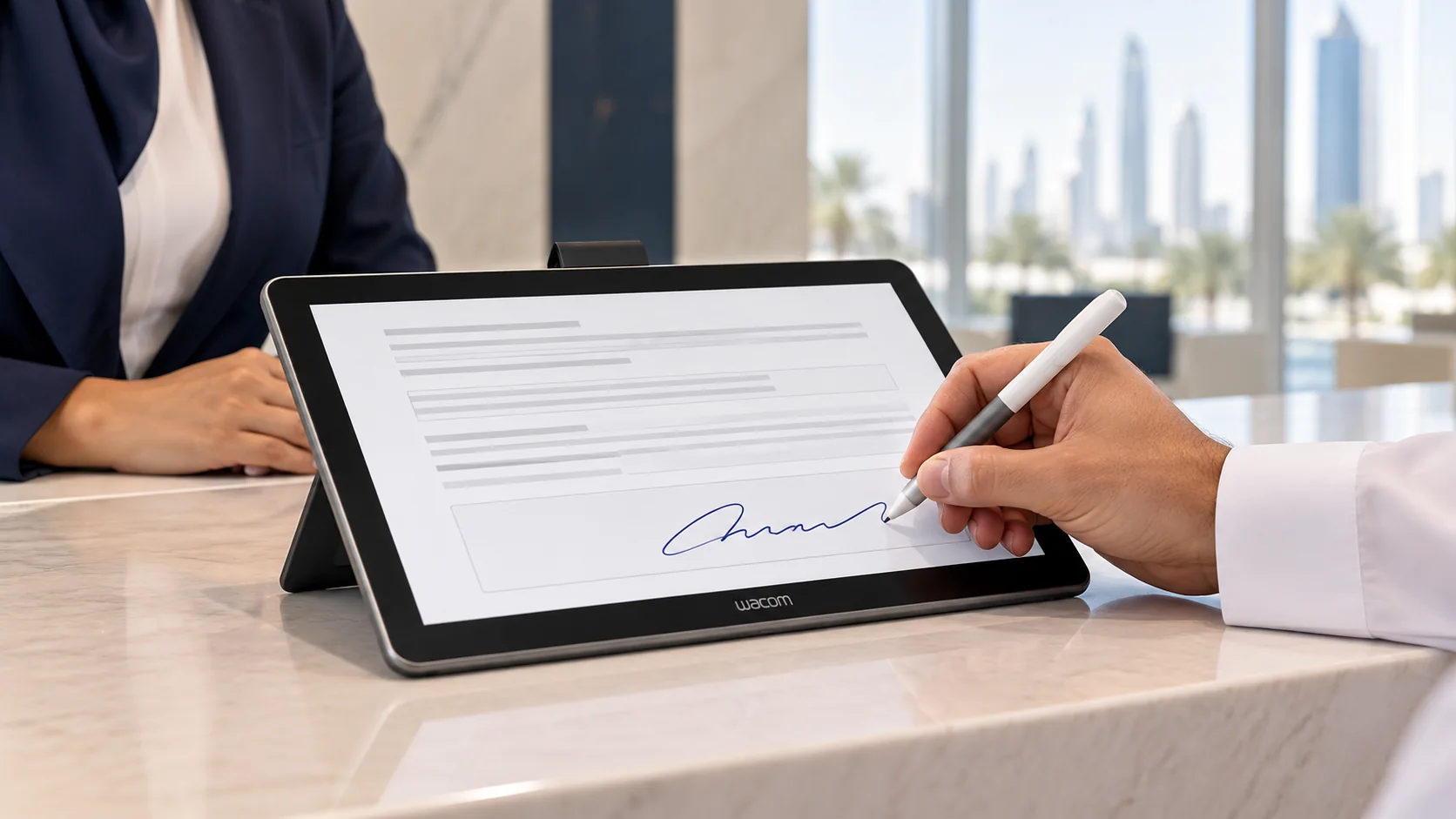
A small signature pad gives a customer a place to sign; the document may remain on the staff member’s screen. The DTH142E changes that interaction. A customer can read information on its 14-inch 1920 × 1080 display, scroll or select fields with a finger, and write with the pen. This is useful when the person signing should review the form directly, such as at an account-opening desk, hotel reception, clinic intake point or customer-service counter.
It is a connected pen display, not a computer or complete e-signature platform. Your host computer presents the document, and your chosen application decides where signatures appear and how records are saved. Wacom says the unit has no internal CPU, memory or storage for user documents. A sensible deployment therefore includes host security, access controls, application licensing and record management.
The display measures 336 × 201 × 11 mm and Wacom lists 780 g including the stand. The active area is 309 × 174 mm. Its cover glass reduces glare and fingerprints under shared counter use. The Wacom One Standard Pen supplied with it uses EMR technology, has 4,096 pressure levels and does not need charging. A side slider lets staff switch touch off for a pen-only interaction.
Where it fits and where a smaller pad fits better
Choose the DTH142E when customers need to see terms, confirm fields, annotate or sign a document on the surface itself. The generous display can cut down on back-and-forth between a clerk’s monitor and a separate signature point. It may also help with guided approvals and form completion, provided the application has been designed for touch and pen input.
If the customer only signs one field after a staff-led review, Wacom STU-430 or Wacom STU-540 may fit a crowded counter better. Those pads are focused on signature capture. They should not be represented as equivalent full-document displays. The DTH142E is also not a tablet that works independently from a host.
DTH142E compared with Wacom business devices
| Device | Screen and interaction | Finger touch? | Choose it for |
|---|---|---|---|
| STU-430 / STU-540 | Compact signature-pad displays | No | Signing a field at a compact counter |
| DTU-1141B | 10.1-inch Full HD document view with pen | No | Pen signing and document viewing in less space |
| DTH142E | 14-inch Full HD, EMR pen and navigation by touch | Yes, up to ten fingers | Customer review, touch navigation and signing |
| DTK-168E | 16-inch WQXGA pen display | No | Larger pen-based viewing and annotation |
These are workflow distinctions, not a ranking of signature security or legal effect. Wacom’s signature-solutions brochure documents the STU and DTU families; the linked eTOP product pages show the available catalog choices. The local DTH142E datasheet and Wacom’s business display material support the DTH142E figures. Confirm every proposed software combination against Wacom’s current compatibility guidance before procurement.
Two practical connection routes
1. USB-C with DisplayPort Alt Mode
Check the host computer’s USB-C specification first. The port must support DisplayPort Alt Mode to send a picture to the display. Connect the supplied USB-C to C cable to the video-capable host port and the DTH142E. This route carries the display signal and pen/touch data. A data-only USB-C port cannot do this. Confirm that the host can provide the required power as well as video. If the power indicator signals insufficient power, connect the supplied AC adapter; follow Wacom’s DTH142E setup guide for the device’s port sequence.
2. HDMI for picture, USB-A for input
On a computer without suitable video-capable USB-C, use the supplied mini-HDMI to HDMI cable for the picture and USB-A to USB-C cable for pen and touch data. Connect the supplied AC adapter for power. The separate cables make it especially important to check that the video output, input data and power are all present before troubleshooting a blank screen or unresponsive pen.
Wacom lists two USB-C ports and a mini-HDMI port on the device, plus these three cables in the package. The current Wacom driver and host operating system must also match your setup. Wacom’s datasheet lists Windows 10 or later and macOS 13 or later with a driver requirement; validate the exact driver version and signing application in your own environment.
Installation checklist for a pilot desk
- Confirm the host ports. Identify a USB-C port with DisplayPort Alt Mode or a working HDMI output plus USB-A. Do not infer video support from the shape of a USB-C port.
- Connect and power the screen. Choose one of the two routes above, then use the AC adapter when the host cannot supply adequate power.
- Install the current Wacom driver. Follow Wacom’s driver download page for the correct host OS. Follow any restart instructions from the installer.
- Set up the actual form. Place a representative document on the display, check scaling, pen mapping, touch navigation and the touch on/off slider.
- Test the record workflow. Sign a sample form, confirm where the document and signature data are saved, and review your organisation’s consent and retention settings.
- Only then expand. Repeat the pilot with each workstation image or port type used across your desks.
Software, security and procurement questions
Wacom lists compatibility with sign pro PDF and its Signature SDK. That describes hardware compatibility; it does not mean every licence or integration service is bundled. The application must present the form and implement the intended signature process. Ask your IT and compliance teams how the records are authenticated, stored, retrieved and deleted. Wacom’s datasheet lists AES-256 and RSA-2048 for the product, but an end-to-end security claim depends on the driver, host, application and configuration.
The datasheet also lists a Kensington NanoSaver slot and a pen tether for a shared desk. For budgeting, ask eTOP to quote the display, any required software licences, host adapters and rollout assistance separately. eTOP can discuss compatibility and a pilot plan without assuming that a specific application, warranty service or stock promise is included in every order.
Frequently asked questions
Can the DTH142E replace a Wacom STU signature pad?
It can serve a broader document workflow, but it is not a like-for-like compact pad. Choose it when the signer needs to read and navigate the form on the device. An STU pad may still be the better fit for a quick signature field.
Can I connect it with a single USB-C cable?
Yes, if the computer’s USB-C port supports DisplayPort Alt Mode and can provide sufficient power. If not, use the AC adapter or the HDMI and USB-A route described in Wacom’s datasheet.
Does it need its own signing software?
Yes. The DTH142E supplies a display, pen and touch interface, while the connected application handles documents and signatures. Wacom lists sign pro PDF and its SDK as compatible options, with licensing and integration to be confirmed in your quotation.
Does the pen have a battery?
No. Wacom’s EMR pen is battery-free and offers 4,096 pressure levels. The display itself still requires its normal connection and power.
Does the display store a copy of a signed document?
No. According to Wacom’s datasheet, the DTH142E has no built-in CPU or document storage. The host computer and signing application determine where the record is kept.
Does it work with Linux?
The datasheet names Linux among operating systems, but its stated Wacom driver requirement identifies Windows and macOS versions. Verify the intended Linux distribution, driver, touch behaviour and signing application directly before committing to a Linux deployment.
Manufacturer references
- Wacom DTH142E setup guide: connection routes and power checks.
- Wacom DTH142E data sheet (PDF): display, pen, touch, ports, supplied cables and device-storage statement.
- Wacom business pen-display range: position of the DTH142E among business models.
- Wacom signature-solutions brochure (PDF): STU and DTU comparison.
- Wacom DTU-1141B datasheet (PDF): 10.1-inch model comparison.
Planning a signing counter? Tell eTOP how many desks you have, which ports your workstations provide and which forms customers need to review. We can discuss the DTH142E and the integration questions to settle before rollout. View the DTH142E product and datasheet or contact eTOP Trading.