Wacom DTH142E 14-inch Pen & Touch Display
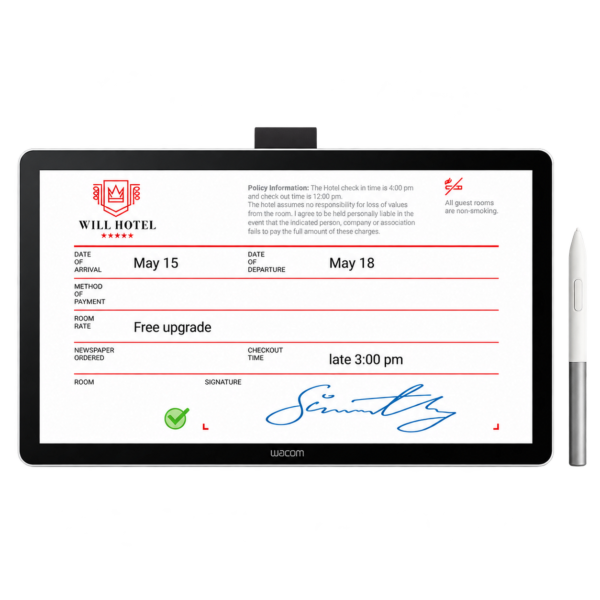
The Wacom DTH142E is a 14-inch Full HD pen and touch display for customer-facing document review and signing. Use the battery-free Wacom pen to annotate or sign, and ten-finger touch to navigate forms. eTOP Trading in the UAE can help check your host ports, driver and signing software before deployment.
- 14-inch IPS, 1920 × 1080 Full HD
- Battery-free EMR pen, 4,096 pressure levels
- Ten-finger touch with physical on/off slider
- Anti-glare, anti-fingerprint cover glass
- USB-C DisplayPort Alt Mode or HDMI plus USB-A
- Included cover stand and connection cables
- Downloadable manufacturer datasheet below
Availability : Ex-Stock, Prior to sales
- Description
Description
Review and sign on the same screen
The Wacom DTH142E is a 14-inch pen and touch display for business counters where a customer needs to read a document, move between fields and sign on the screen in front of them. It works as a display and input device connected to a host computer. Your document and signing software determine the form, signature workflow and record storage.
A Full HD IPS panel gives the customer space to see more of a form than a compact signature pad can show. The anti-glare, anti-fingerprint cover glass suits shared use at reception and service desks. The supplied battery-free Wacom EMR pen offers 4,096 pressure levels, while ten-finger touch supports navigation; a physical slider can disable touch when the workflow calls for pen input only.
The DTH142E can serve customer onboarding, consent forms, reception check-in and document annotation. It is a display, not a standalone signing system: plan the host computer, current Wacom driver, application licence and data-retention policy as part of deployment. For a counter that only captures a signature in a small field, a compact STU-430 or STU-540 may be a more economical fit.
DTH142E specifications
| Model | Wacom DTH142E |
|---|---|
| Display | 14.0-inch IPS LCD, 1920 × 1080 Full HD, 60 Hz |
| Active area | 309 × 174 mm |
| Cover glass | Anti-glare and anti-fingerprint |
| Colour and brightness | 98% sRGB typical; 270 cd/m² typical; 1000:1 contrast |
| Pen | Battery-free Wacom EMR; 4,096 pressure levels; 60° tilt |
| Touch | Projected capacitive, up to 10 fingers; touch on/off slider |
| Connections | Two USB-C ports and one mini-HDMI port |
| Video routes | DisplayPort Alt Mode over USB-C, or HDMI |
| Host input routes | USB-C, or HDMI video plus USB-A data |
| Dimensions | 336 × 201 × 11 mm |
| Weight | 780 g including stand, per Wacom datasheet |
| Power | 7.5 W typical; supplied AC adapter when host power is insufficient |
| Physical security | Kensington NanoSaver lock slot |
| Host systems | Windows 10 or later; macOS 13 or later. Confirm current driver and application support before rollout. |
| In the box | Wacom One Standard Pen, cover stand, USB-C to C cable, USB-C to A cable, mini-HDMI to HDMI cable, AC adapter, pen tether, spare nibs, nib tool and documentation |
Connect the display to your computer
USB-C route: use a host port that supports DisplayPort Alt Mode and connect the supplied USB-C to C cable. Confirm the port can provide adequate power; otherwise connect the supplied adapter. An ordinary data-only USB-C port will not send a display picture.
HDMI and USB-A route: connect the supplied mini-HDMI to HDMI cable for video, USB-A to USB-C cable for pen and touch data, and the AC adapter for power. Install the appropriate Wacom driver and test pen mapping, touch, document display and the actual signing application on the intended host.
What is included and what requires planning
Wacom lists a pen, cover stand, the three connection cables, AC adapter, pen tether, spare nibs and setup documents in the package. The datasheet lists compatibility with Wacom sign pro PDF and Signature SDK. A software licence, integration work and a particular legal signature workflow should be specified in the project quotation; they are not implied by this hardware listing.
Wacom describes AES-256 and RSA-2048 in its product datasheet. The security of a deployed signing process also depends on the host, application, configuration and record handling. The DTH142E has no built-in CPU or document storage; files remain under the control of the connected computer and software.
Compare the right Wacom counter device
| Model | Customer-facing view | Finger touch | Best starting point |
|---|---|---|---|
| STU-430 / STU-540 | Compact signature field | No | Dedicated signature capture |
| DTU-1141B | 10.1-inch Full HD document view | No finger touch | Compact document viewing and pen signing |
| DTH142E | 14-inch Full HD document view | Yes, up to ten fingers | Review, navigate, annotate and sign |
| DTK-168E | 16-inch WQXGA work area | No finger touch | Larger pen-based document work |
Frequently asked questions
Is the DTH142E a signature pad?
It is a pen and touch display. Unlike a compact STU signature pad, its 14-inch Full HD screen can show a document for customer review, touch navigation, annotation and signing. Your application controls which fields and records appear.
Does the Wacom pen need charging?
No. Wacom specifies a battery-free EMR pen with 4,096 pressure levels. The display still needs its own connection and sufficient power from the host or the supplied adapter.
Can I use one USB-C cable?
Yes, if the computer supports DisplayPort Alt Mode on its USB-C port and supplies enough power. Otherwise use the supplied AC adapter, or the HDMI and USB-A connection route for separate video and input data.
Does DTH142E store signed documents?
No. Wacom says the device has no built-in CPU or storage. The connected computer and signing application manage the document, signature data and retention policy.
Is signing software included?
Do not assume a software licence is bundled. Wacom lists compatibility with sign pro PDF and its Signature SDK; confirm the application, licence and integration scope in your eTOP quotation.
Will it work with my existing workstation?
Check the workstation ports, operating system and Wacom driver before buying for multiple desks. A data-only USB-C port cannot carry the video signal; HDMI plus USB-A is the alternative described in the datasheet.
Download the Wacom DTH142E datasheet (PDF) | Read the DTH142E buying and setup guide
Ask eTOP about DTH142E availability, host compatibility and deployment.